
Appearance
CSS Files
CSS resource files can be added to back-end as well as front-end pages.
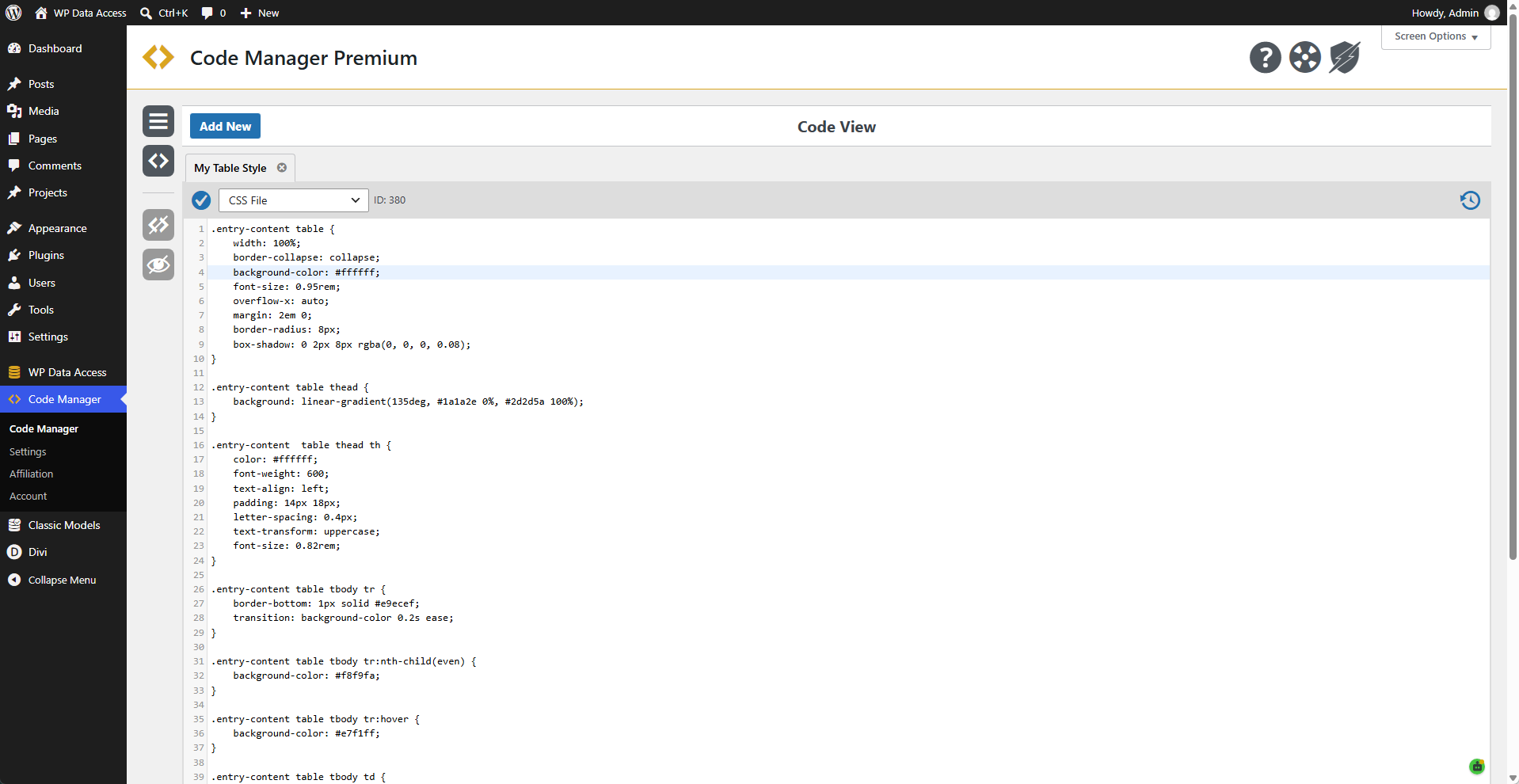
✨ Example - My Table Style
Example of a CSS file that can be added to a back-end or front-end page to style tables.
How To Use
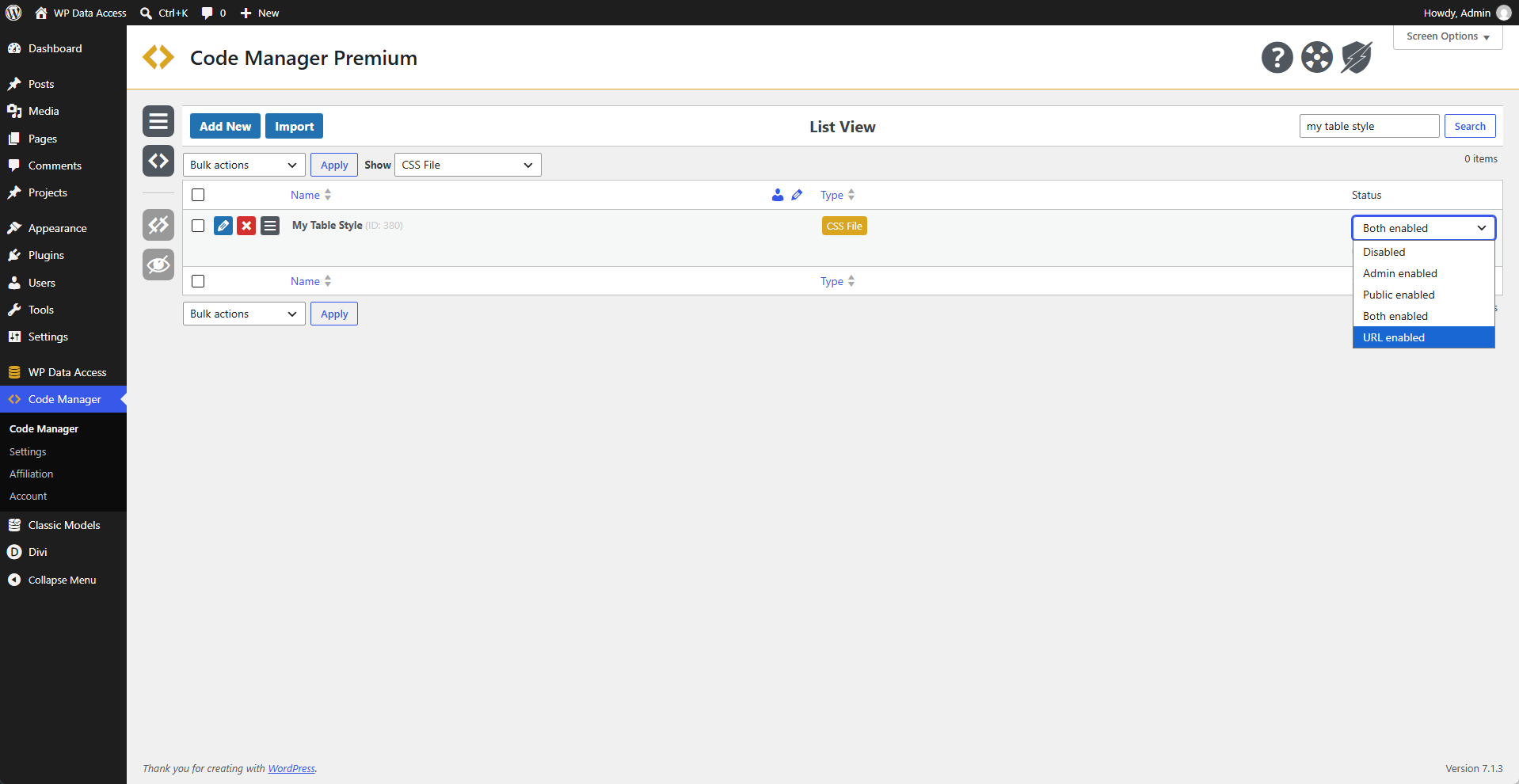
A CSS file can be enabled in the List View. It supports five options:
- Disabled - Disables the CSS.
- Admin Enabled - Adds CSS to back-end pages.
- Public Enabled - Adds CSS to front-end pages.
- Both Enabled - Adds CSS to back-end and front-end pages.
- URL Enabled - Enables the CSS through a unique URL.
Back-End
Adding CSS is mostly done through the installed theme. Styling defined in the theme, however, does not apply to the back-end. It works for the front-end only. With the Code Manager, you can add custom styling to the back-end as well. This can be particularly useful for plugins like WP Data Access that support apps in the back-end.
Front-End
Although CSS styling for public pages is available in themes, this feature is especially helpful for users who need consistent styling on the back-end and front-end. WP Data Access apps, for example, run in the back-end and front-end and can be styled similarly on both types of pages.
URL
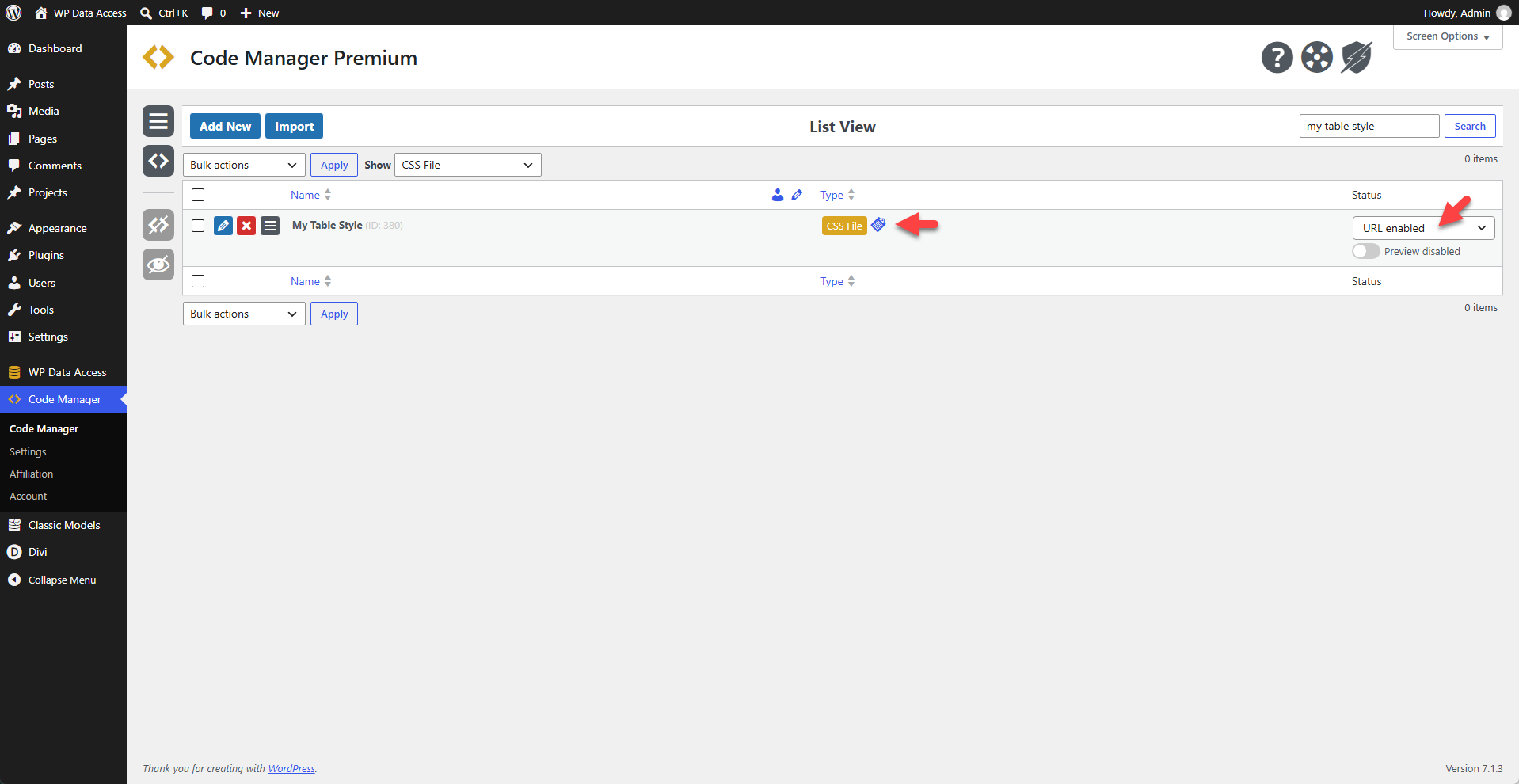
A URL enabled CSS file is not added to back-end and front-end pages automatically. Instead, it can be added when needed.
✨ Example - onAppOpen Hook
Add the
My Table Styleexample to a WP Data Access app.
js
((loadScript, loadStyle) => {

	loadStyle("/wp-json/cm/css/?code_id=380", "myTableStyle")

})